← 1️⃣ – ✉️ – Correu corporatiu del centre
Step 1: Checking How AI Mode Worked
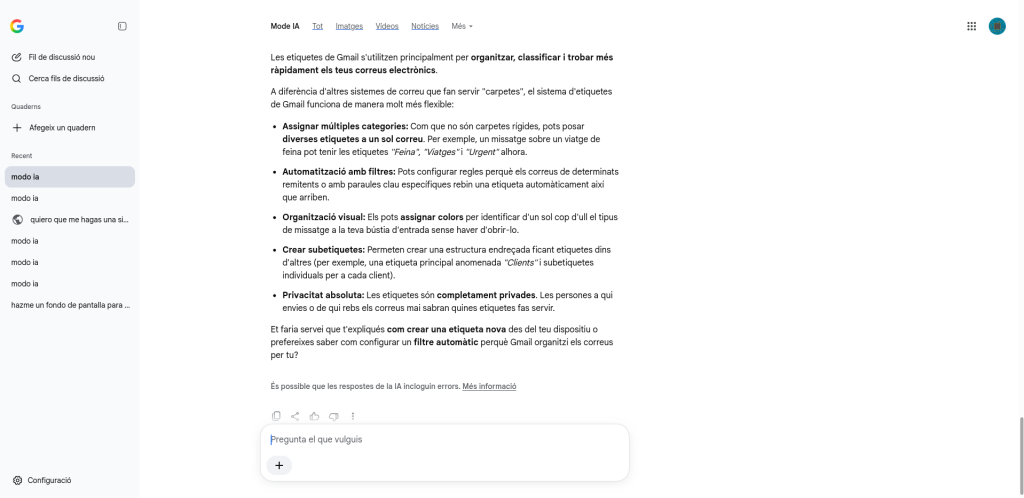
First of all, I used the chat in AI Mode to ask what Gmail labels were all about. I wanted to see how they worked before doing anything, like adding colors or using filters so I wouldn’t have to do it manually.
Step 2: Creating the First Names
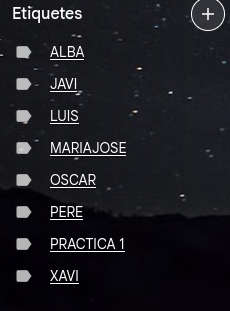
Next, I started creating my first labels in the sidebar to keep names of people and work clear. I made this list:
ALBA, JAVI, LUIS, MARIAJOSE, OSCAR, PERE, XAVI.
Step 3: Adding Colors and Creating Sublabels
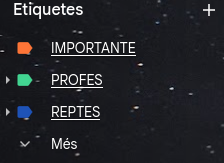
Then I decided to organize things better by topic to make everything clearer. I assigned colors to important labels and created sublabels inside the main folders (the ones that show up with the arrow ▶):
🔵 CHALLENGES: In blue for my projects or challenges (also with sublabels inside).
🔴 IMPORTANT: In red for urgent items.
🟢 TEACHERS: In green for teachers (with sublabels inside).
Step 4: Tweaking Gmail Settings
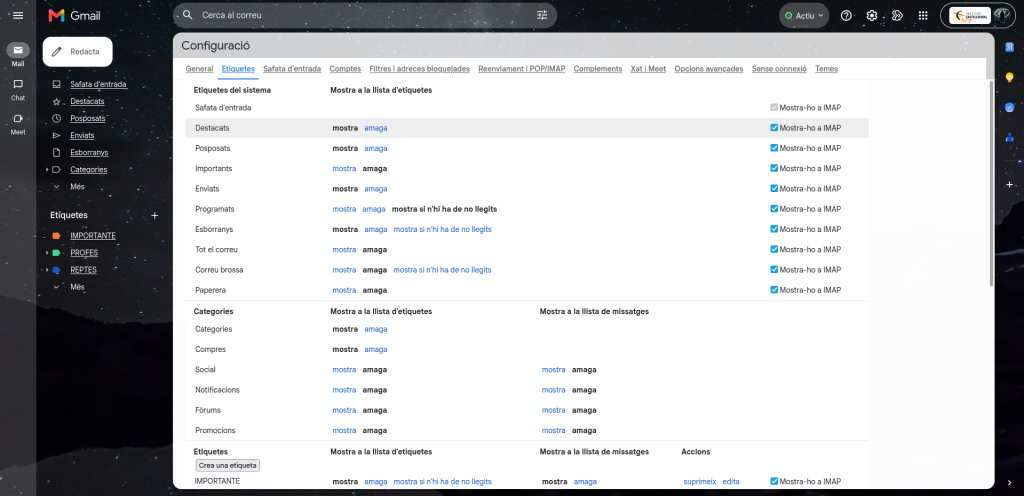
Finally, I went directly into Gmail Settings, under the Labels tab, to manage how everything looks:
I located the buttons to edit names, delete labels, or sync everything with the IMAP inbox in case I need them in the future.
I checked which system items (like Starred or Drafts) I wanted to show or hide.
I verified that my labels (IMPORTANT, TEACHERS, CHALLENGES) were set up correctly to appear in the message list.
MOODLE